Markdown Preview & Documentation Reading
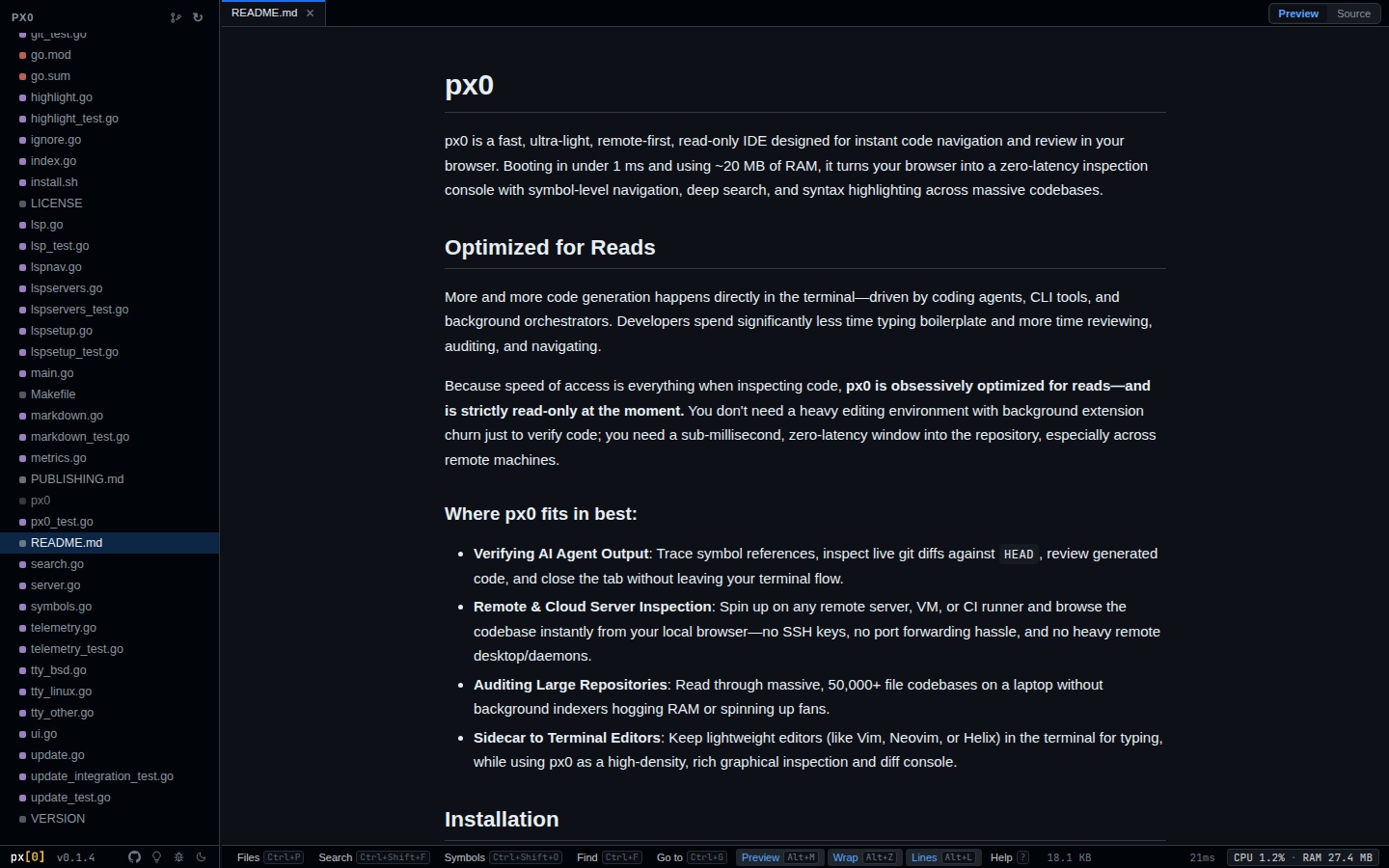
px0 provides a built-in markdown preview engine powered by Goldmark and client-side security sanitization. It allows you to read technical documentation, design specs, and README files with rich typography without leaving your code viewer.
Toggling Preview Mode (Alt+M)
When any markdown file (.md, .markdown, .mdx) is open in an editor tab, you can toggle between source code and rendered preview at any time:
Alt+MYou can also click the Preview / Source button in the top right of the editor tab header.
Key Capabilities
1. Synchronized Bi-Directional Scroll
When toggling between Markdown Source and Preview using Alt+M, px0 automatically preserves your vertical position using source line anchors (data-line). Switching back and forth keeps the exact paragraph or code block centered in your viewport.
2. Native Syntax-Highlighted Code Fences
Code fences within Markdown documents are tokenized and rendered using px0’s syntax engine (Chroma), matching the color palette of your active theme.
3. Local Link & Image Resolution
- Relative Links: Clicking a relative link (such as
./docs/architecture.md) automatically opens the target file in a new tab within px0. - Embedded Images: Local relative image paths are resolved and served directly by the embedded web server with lazy loading (
loading="lazy") and asynchronous decoding (decoding="async").
4. Interactive Image Lightbox
Clicking any standalone image in a rendered Markdown article opens an interactive full-window modal lightbox:
- Natural Dimensions: Displays the image title and natural width by height pixel dimensions.
- Open in Tab: Clicking Open in Tab promotes the image to a dedicated image tab, unlocking pan-and-zoom controls, background contrast modes (
b), and pixelated rendering toggles (p). See the Image Viewer Guide for full details. - Copy Path / URL: Copies either the local workspace file path or the external image URL to your clipboard.
- Dismissal: Close the lightbox at any time by pressing
Escapeor clicking anywhere on the dimmed background backdrop.
5. Resilient Error Fallbacks
If an embedded image link is broken, missing, or returns a 404 error, px0 intercepts the failure gracefully. Instead of displaying a broken browser icon or causing layout shifts, it replaces the element with an inline warning card: Image not found: <path>.
6. DOM Security Allowlist
To protect users from malicious documentation or cross-site scripting attacks when viewing untrusted repositories, px0 processes all rendered HTML through an allowlist sanitizer before injecting it into the DOM. Dangerous tags, external scripts, and iframe injections are stripped away.