Quickstart & First Session
px0 is the IDE for humans and AI, optimized for quick, fast code reviews with native Git and GitHub integrations, and seamless connection to AI coding harnesses. This guide walks you through launching your first session and navigating the interface.
Launching Your First Workspace or PR Review
Open any directory, repository, or GitHub pull request by passing it to px0:
# Open current working directory
px0 .

# Open any repository path
px0 ~/projects/backend

# Review a GitHub pull request directly in the browser
px0 https://github.com/owner/repo/pull/123
px0 instantly scans the tree or checks out the PR in a few milliseconds, launches an embedded HTTP server, and opens your default browser.
Interface Anatomy
The px0 interface is designed for high-density reading and zero visual clutter. It consists of five primary regions:
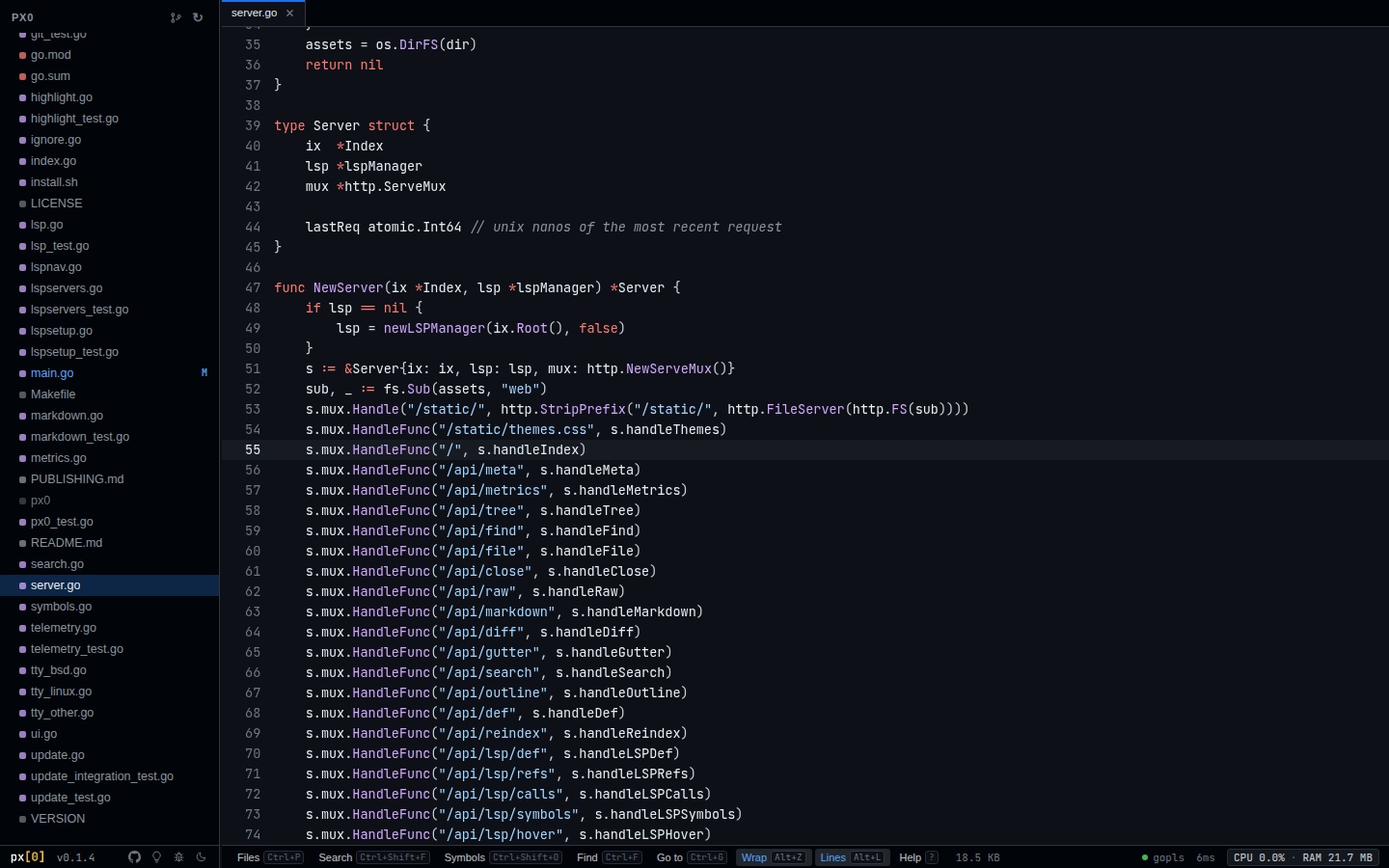
1. Left Activity Rail
The narrow leftmost bar lets you toggle sidebar panels:
- Files (Explorer): View folder hierarchy and changed files.
- Workspace Search: Full-text regex search across the repository.
- Symbol Outline: Instant symbol hierarchy for the active file.
- Themes: Cycle or select from 14 built-in syntax themes.
- Shortcuts (
?): Show the interactive keyboard shortcut sheet.
2. Collapsible Sidebar
- Project Root: Displays the root folder name.
- Changed Files Filter (
*): Filters the tree to show only files with git changes (M,A,D,U). - Reindex Button (
↻): Re-scans the project tree and updates git diff badges in under 50 ms. - Status Bar Footer: Shows the current px0 version and theme selector.
3. Tab & Breadcrumbs Bar
- Displays active tabs with language icons.
- Click any path segment in the breadcrumbs bar to reveal that directory in the file explorer.
- Re-open closed tabs quickly with
Alt+Shift+T.
4. Virtualized Code Viewport
- Windowed Rendering: Opening a 500,000-line file costs the same memory as a 10-line file. Only the visible ~60 rows are mounted in the browser DOM.
- Permanent Line Numbers: Clean, non-intrusive line numbers remain visible by default in the gutter.
- Selection & Context Actions: Select code with your mouse or classic
ShiftandCtrlkeyboard navigation. Right-click any selection or pressAlt+Eto dispatch instructions to your coding harness, copy standardized@path:l1-l2citations, or search workspace usages. - Hover Inspection: Move your mouse over any identifier to inspect its type signature and documentation.
5. Status Bar
Located at the bottom of the window, the status bar displays:
- Active coding harness (Claude Code, Gemini CLI, Cursor Agent, Antigravity, OpenCode, Codex, Aider, or Goose) and selected model
- Language mode (e.g. Go, Rust, TypeScript, Python)
- Line count and file size
- Cursor position (line and column)
- Language Server (LSP) status indicator and install recipe trigger
- Interactive CPU and RAM process metrics popover
Core Navigation & Editing Workflows
1. Jump to Any File (Ctrl+P or Cmd+P)
Press Ctrl+P (or Cmd+P on macOS) to open the fuzzy file finder. Type any part of a file path (for example srv/http or pkg/index) and press Enter to open it immediately.
2. Full Workspace Search (Ctrl+Shift+F or Cmd+Shift+F)
Press Ctrl+Shift+F to open the full-text search panel. Searches execute in parallel across all CPU cores, bypassing .gitignore files automatically. Closing the panel automatically cancels in-flight searches.
3. Jump to Symbol in File (Ctrl+Shift+O or Cmd+Shift+O)
Quickly jump to functions, methods, structs, or classes within the current file. Symbols are extracted via LSP when available, or instant regex parsing as fallback.
4. Inspect Git Diffs (Ctrl+D or Cmd+D)
Press Ctrl+D on any modified file to view side-by-side or unified diffs against HEAD. Uncommitted agent changes are highlighted with green and red gutter markers.
5. Edit with Coding Agent (Alt+E or Option+E)
Highlight any range of code in source view or git diff view and press Alt+E (or right-click). Type your instruction into the composer, select an AI model from the dropdown, and press Enter. px0 streams the agent output directly to your terminal, guards against conflicting edits, and reloads modified files automatically.
Stopping px0
When you are done reviewing code, switch to your terminal and press Ctrl+C. The server cleanly stops child language server processes and terminates without leaving temporary cache files or lockfiles on your system.